

Setting up BEE
The manual describes the steps to set up BEE External Control on the SmartgridOne Controller.
When setting up this integration, permission is granted to BEE to control the necessary devices.
Supported Devices
| Device Type | Variants | Supported |
|---|---|---|
| Solar Inverters | All | ✅ |
| Storage Devices | ||
| EV Chargers | ❌ |
Supported Countries
| Country | Supported |
|---|---|
| Belgium | ✅ |
| Netherlands | ❌ |
Prerequisites
1. Add the batteries
Login to the commissioning interface and make sure the devices are added to the SmartgridOne Controller.
2. Check the grid power limits
In the settings, the grid power limits should be set correctly. Click Settings and check the highlighted setting in the image. If necessary, adjust the settings.
Add 'BEE - External Control'
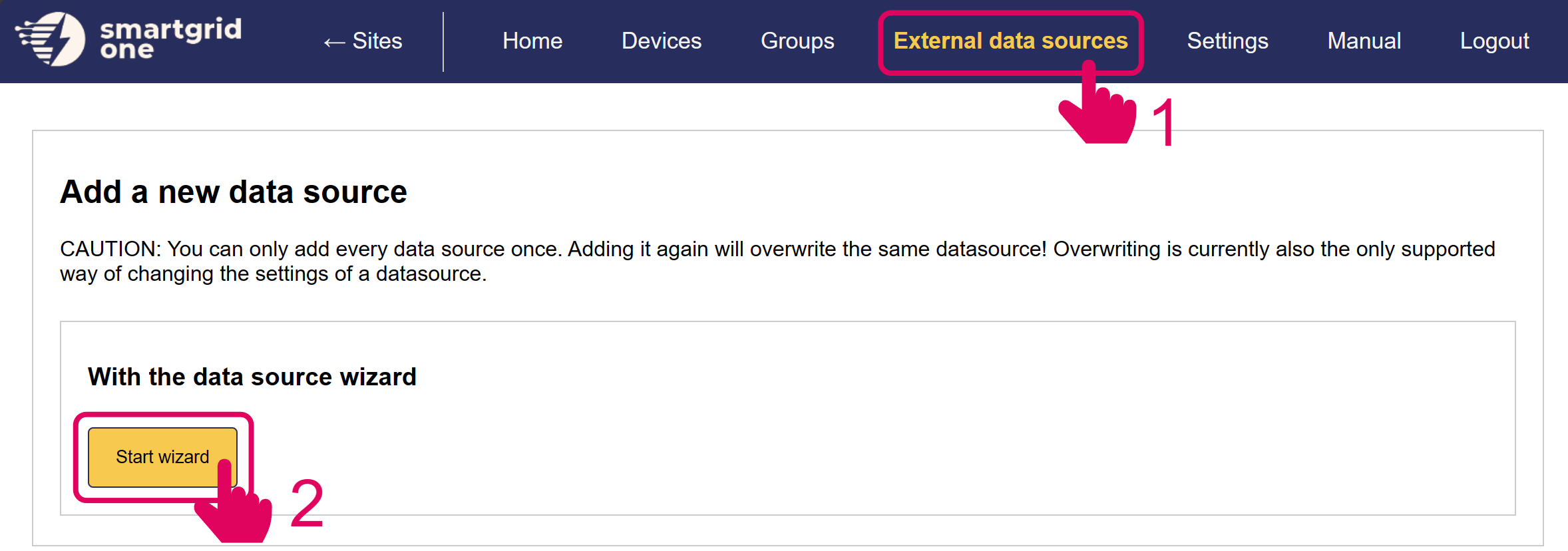
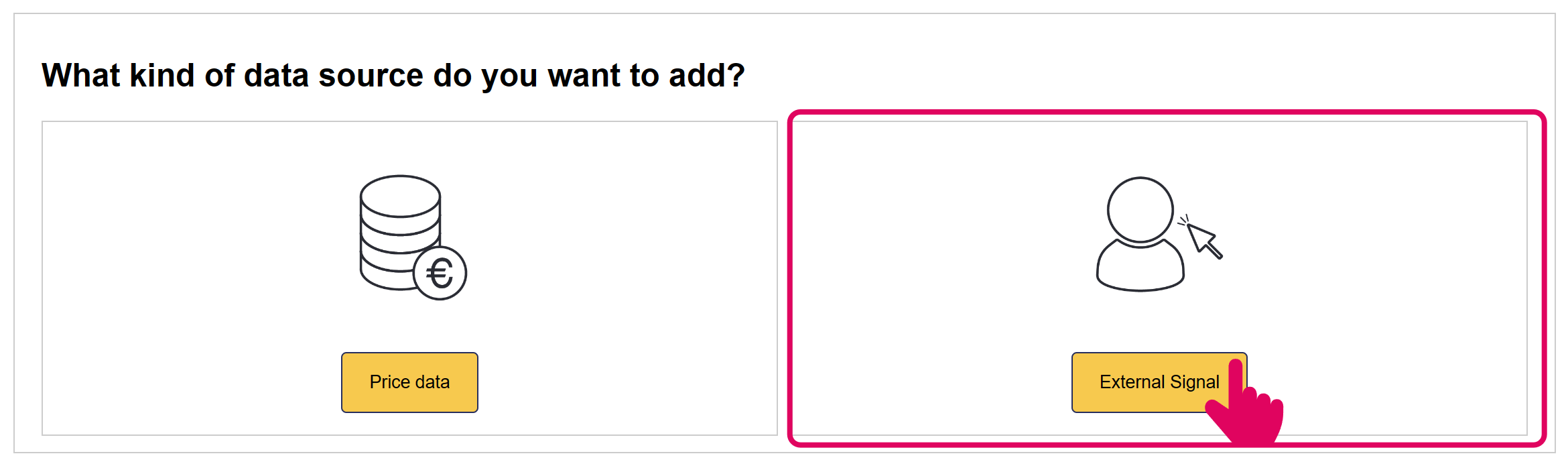
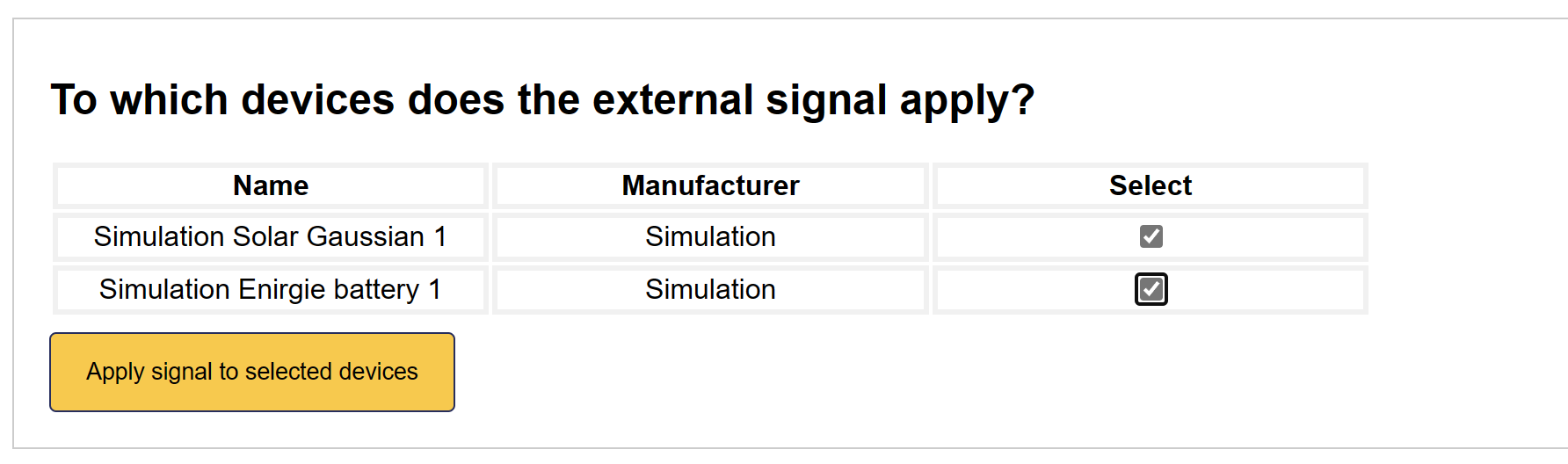
In the next page, you have the option to include/exclude devices for remote control. Ensure to mark all checkboxes of devices you'd like to include.
Note
Note
When using multiple batteries, they are aggregated into one (virtual) asset for BEE.
'BEE' is now set up on the SmartgridOne Controller.
Last updated April 8, 2026Edit this page