

Overview
Caution
NOTE: CKW decides when and how your battery should charge or discharge through their system. Our platform simply carries out these battery operation decisions.
If you have any questions about how your battery is being controlled or disagree with the charging/discharging decisions, please contact CKW directly, as we cannot modify or influence their battery management strategy. " This service allows you, as a customer of CKW, to use your battery on various energy markets. The manual describes how we can set this up on the SmartgridOne Controller. At the end of this manual, CKW will have control over the battery. When setting up this integration, permission is granted to CKW to control this battery.
Supported Devices and countries
The following devices types are supported by the CKW integration:
| Device Type | Variants | Supported |
|---|---|---|
| Solar Inverters | All | ✅ |
| Storage Devices | ||
| EV Chargers | ❌ |
Prerequisites
1. Add the devices
Login to the commissioning interface and make sure the devices are added to the SmartgridOne Controller.
2. Check the grid power limits
In the settings, the grid power limits should be set correctly. Click Settings and check the highlighted setting in the image. If necessary, adjust the settings.
3. Check the address
Make sure the address is set correctly.
Warning
The integration may not work correctly if the address is not correct!
Enabling 'CKW'
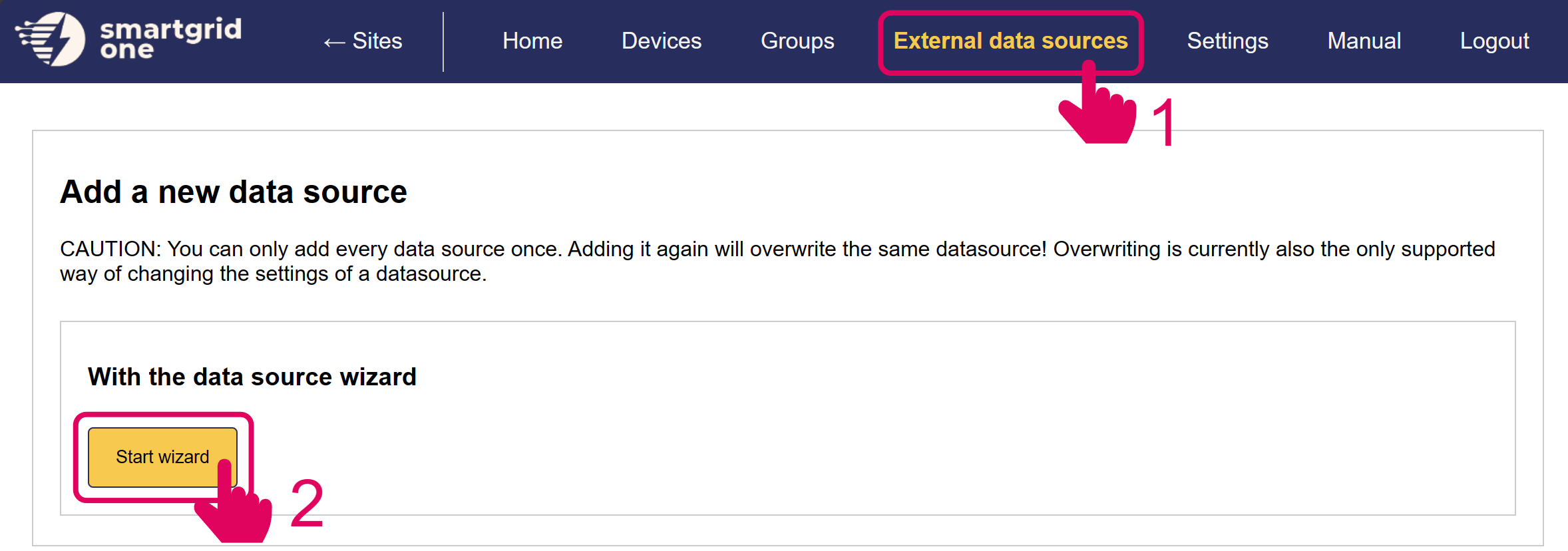
From the commissioning interface, go to the 'External Signals' tab.
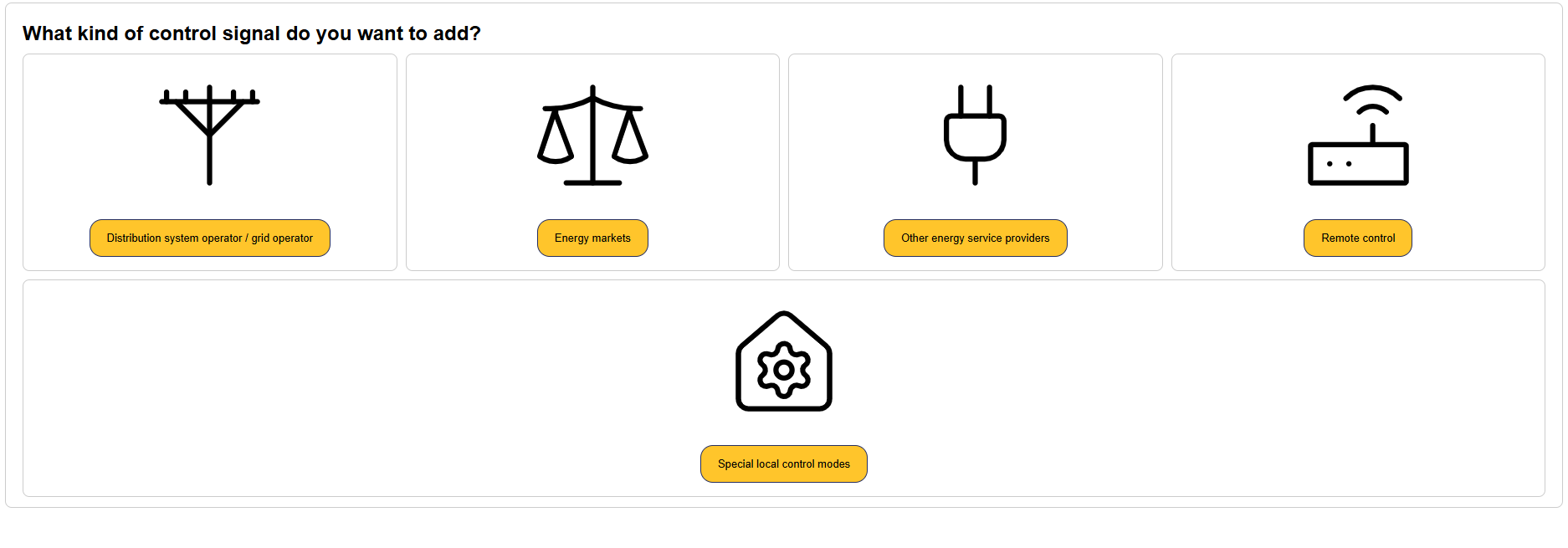
Click on 'Energy Markets'.
Select 'CKW' and click 'Next'.
Select the control tier which is applicable to your installation.
Tier 1 - Setpoint Follower
Setpoints received from CKW are sent directly to the devices. No local control is done by the SmartgridOne Controller.
Tier 2 - Delta Stacking
The SmartgridOne Controller executes its own self-consumption algorithm, CKW uses the battery availability to activate the battery on ancilliary markets.
Tier 3 - Battery Splitting
Work in progress.
The battery is split into two virtual batteries. One part is controller by CKW on various ancilliary energy markets, while the remaining portion of the battery is used for local control only.
Device Selection
In the next page, you have the option to include/exclude devices for remote control. Ensure to mark all checkboxes of devices you'd like to include.
Note
When using multiple devices, they are aggregated into one (virtual) asset, per asset type, for CKW.
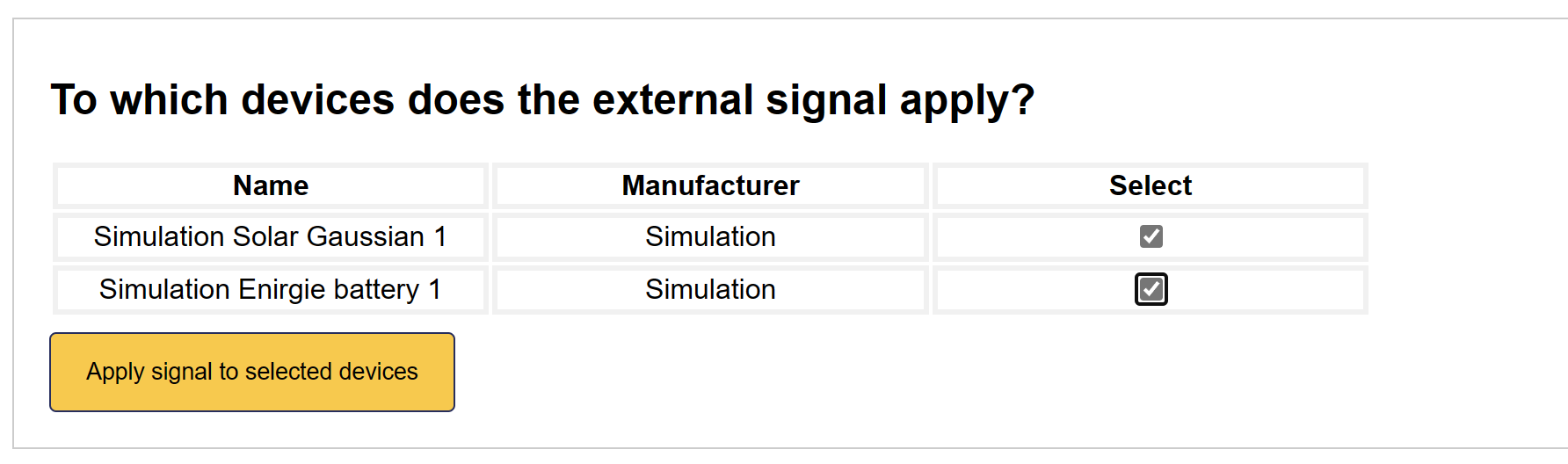
'CKW' is now set up on the SmartgridOne Controller.