
SmartgridOne logo
SmartgridOne logo
Quick StartInstallationNetworkWiring & connectivity guidelinesApp
1. Link to your account2. Accessing commissioning interface3. Grid limits4. Location / address5. Add grid energy meter6. Add other devices7. Grouping devices
9. PV panel configuration10. External control signals
Adding a deviceAdvanced settingsBackupEnergy storage and EVsBattery maintenance chargeData usageDC-Linking Inverters and BatteriesDirect relay or switch controlEnergy CostsPhase imbalance correctionPredictionsPrioritiesRescale energy meter readingsFactory resetReverse energy meter readingsTesting and manual overrideUser managementConfiguring a fixed IP address in Windows
SpecificationsStatus LEDsControl response timeVideo tutorialsCertificatesLicenseSafety, maintenance and legal notices
Configuration from A to Z11 Extra Information

Windows 11

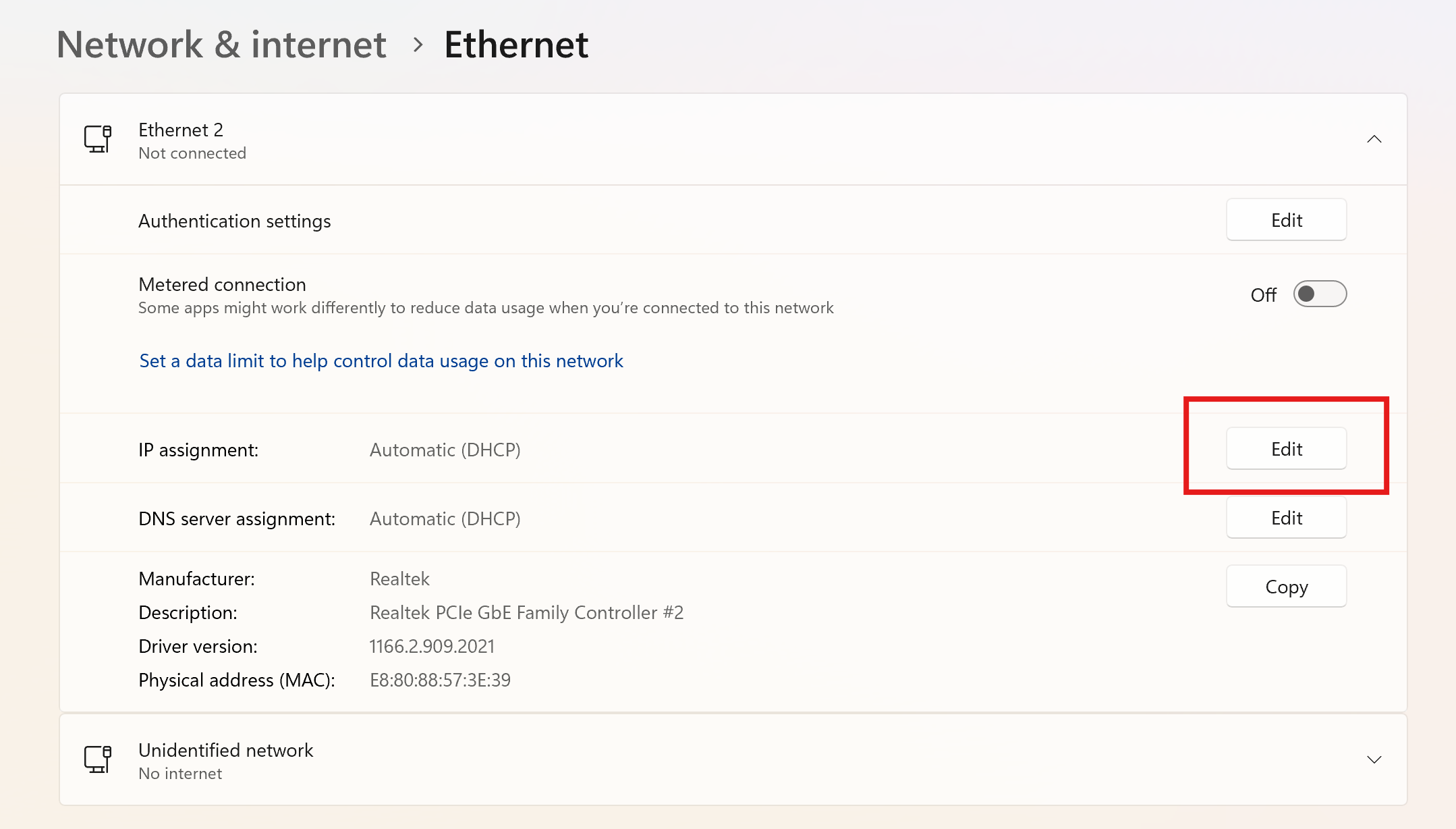
  1. Open the Settings app of Windows, go to "Network & Internet" and click on "Ethernet".
  2. Open the dropdown menu of your ethernet interface, and click on "Edit" next to "IP assignment"
Powershell start
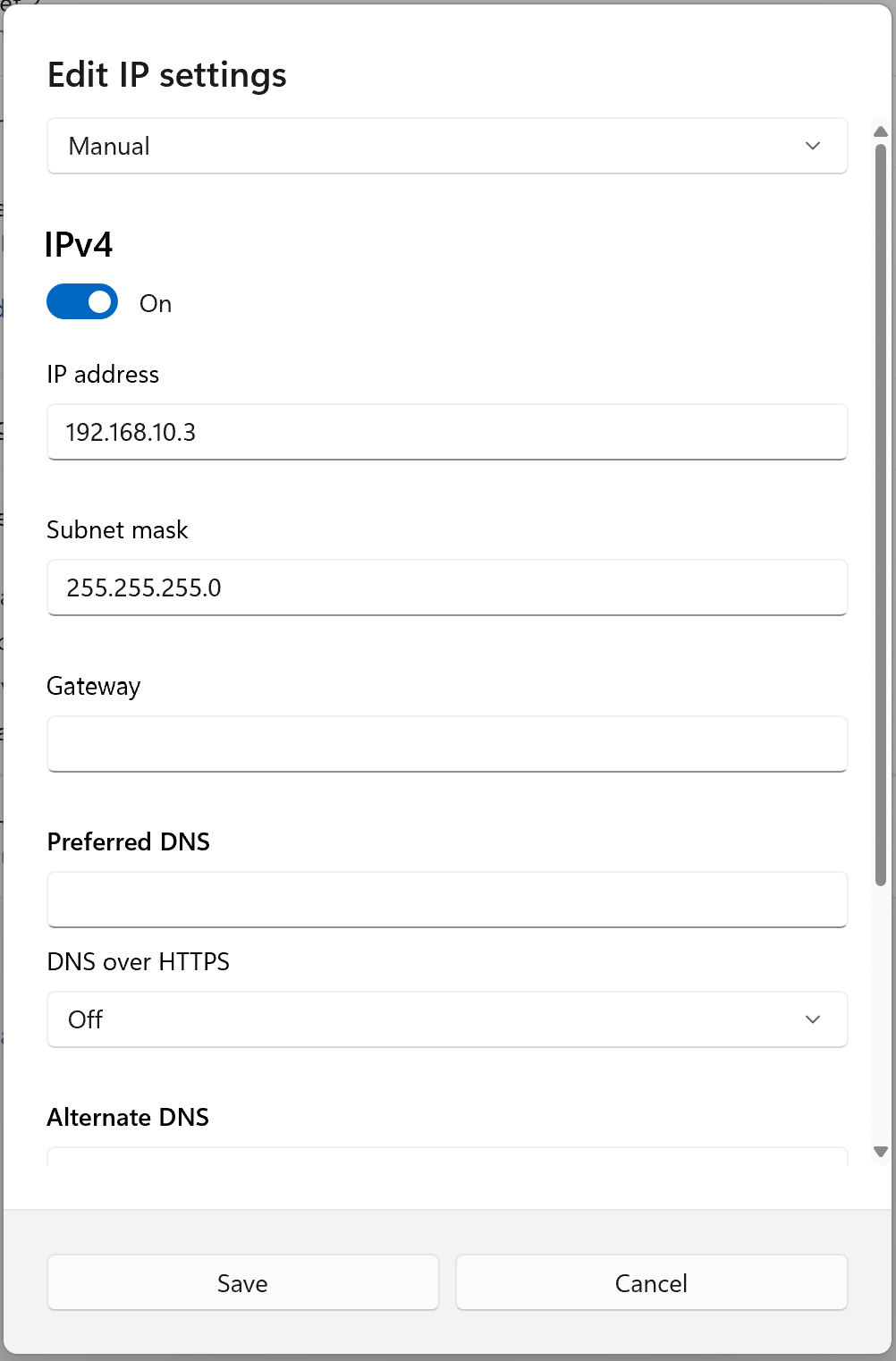
  1. Set the "IP Settings" to Manual, and give your computer a fixed IP address in the same range as the SmartgridOne. For example, if your SmartgridOne has IP address 192.168.10.2, you should give your computer another IP address in the 192.168.10.x range. Make sure that the IP address you choose is not used by another device on the same network!
Powershell start
  1. Click save. You can now surf to the IP address of the SmartgridOne in a web browser to access the commisioning interface.
  2. When you're done, don't forget to put your ethernet interface back on "DHCP".

User management

Previous Page

A1-Port

Next Page

On this page

Windows 11