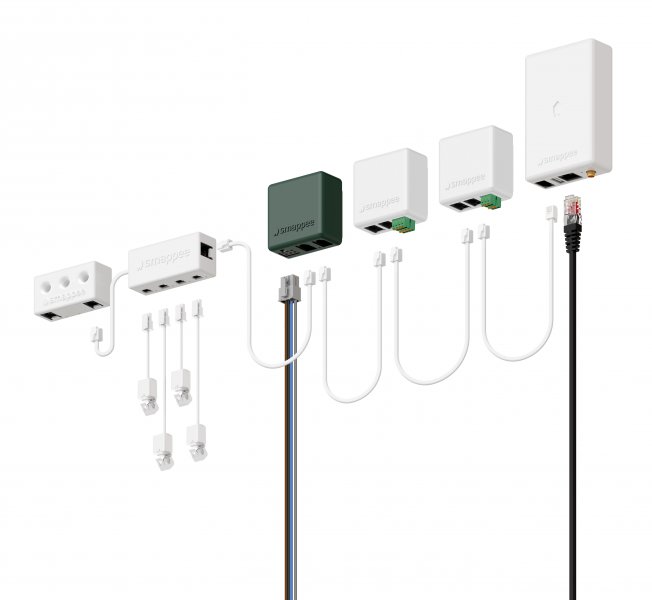
Smappee Energy Meters

Supported Devices
| Device Type | Modbus TCP (Ethernet) | RS485 | MQTT |
|---|---|---|---|
| Smappee energy meters with MQTT | ❌ | ❌ | ✅ |
Note
The integration is at the moment available only for the older Genius models (Serial number starting with 501xx).
Configuration
Smappee should communicate through MQTT to the SmartgridOne database. This database is then used as a source for the Smappee data.
Documentation about Smappee MQTT can be found in the attached document from Smappee: Download the PDF.
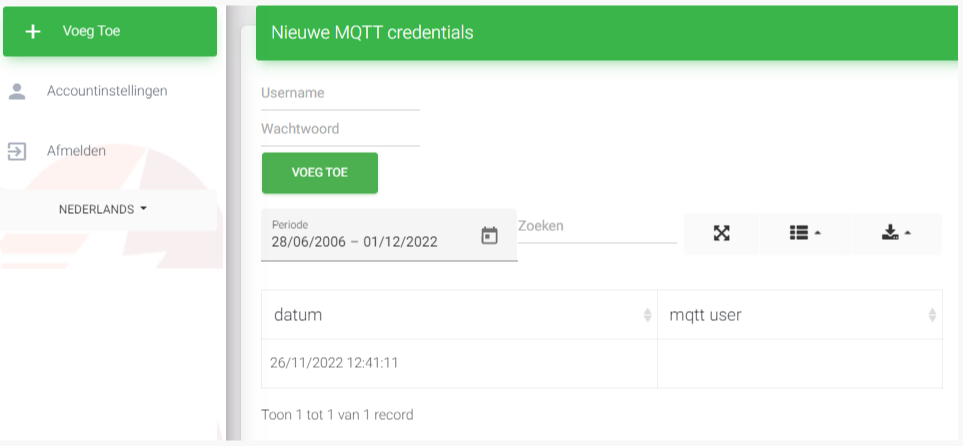
1. Creating MQTT credentials
The MQTT credentials that are required in the Smappee configuration will be made in this step. Note: Creating MQTT credentials is currently only available on insights2 so you will need to navigate to https://insights.eniris.be
- Click on global settings
- Select Credentials & Licenses in the top menu
- Select Add Credentials
- The username should be in the format yourcompanyname-index (e.g. eniris-0).

2. Get the Smappee UUID
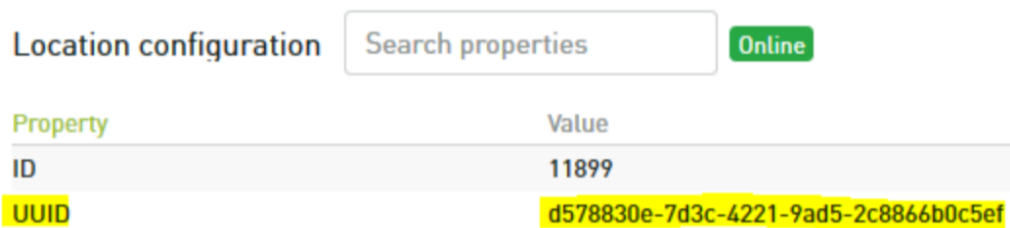
The Smappee UUID is an important link to the correct Smappee location.
Obtain it through:
- Dashboard:
- go to https://dashboard.smappee.net
- add a Location configuration card
- REST API call:
- MQTT wildcard:
- Match the Configuration Topic results to the serial number you need, see https://www.hivemq.com/blog/mqtt-essentials-part-5-mqtt-topics-best-practices
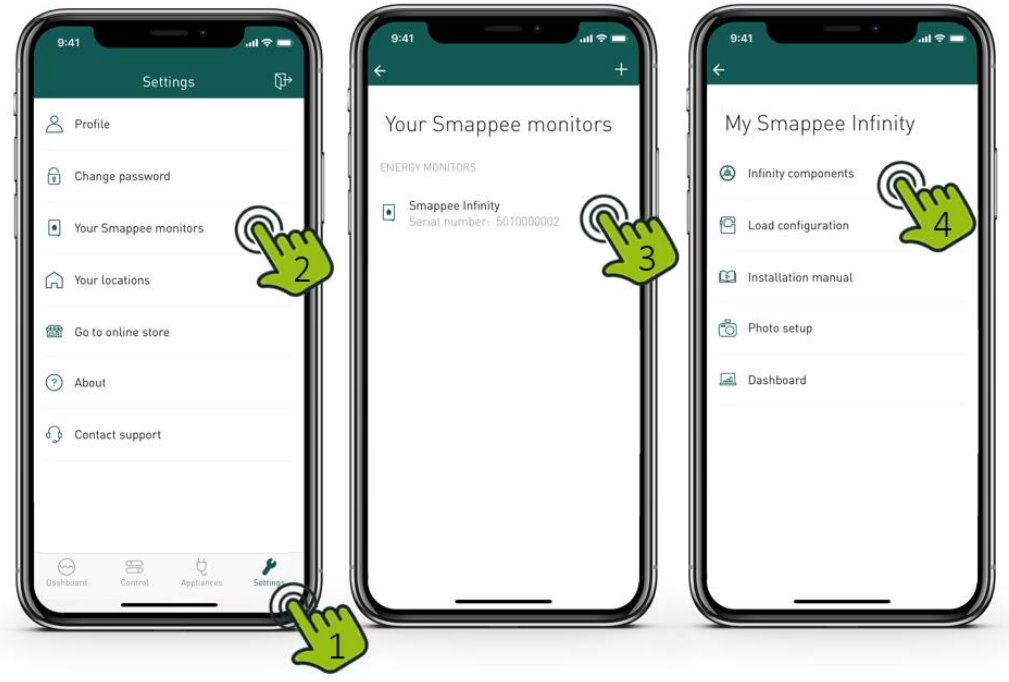
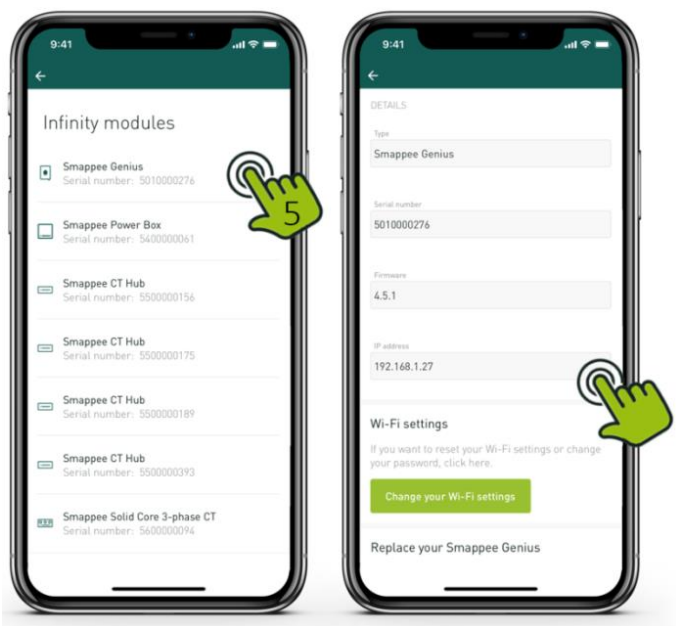
3. Get the Smappee IP address
- Open the Smappee APP
- Go to Settings
- Click Your Smappee monitors
- Click Smappee Infinity
- Click Infinity Components
- Click Smappee Genius
- Find the IP-address in the details
4. Configuring the MQTT broker in the Smappee Energy Meter
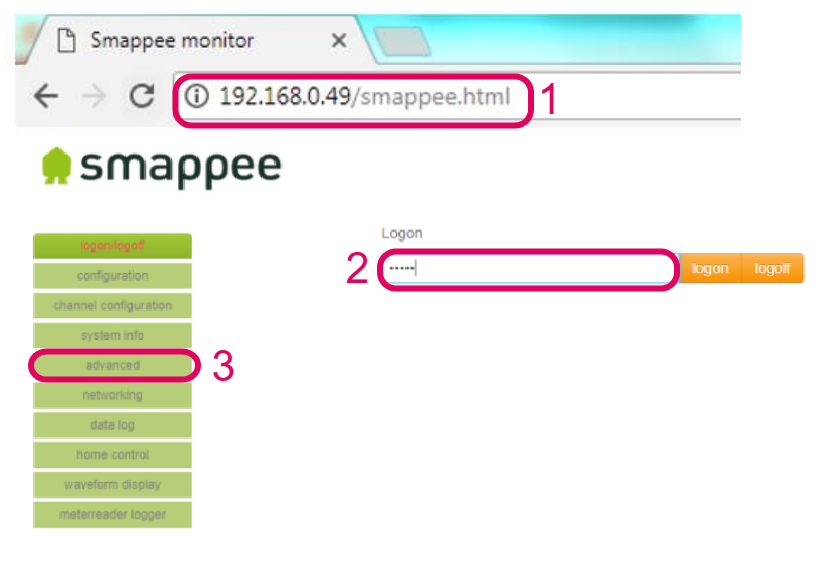
- Navigate to the in the previous step determined IP of your Smappee monitor followed by /smappee.html . Example: 192.168.0.128/smappee.html
- Click Logon/logoff and log in
- Click advanced
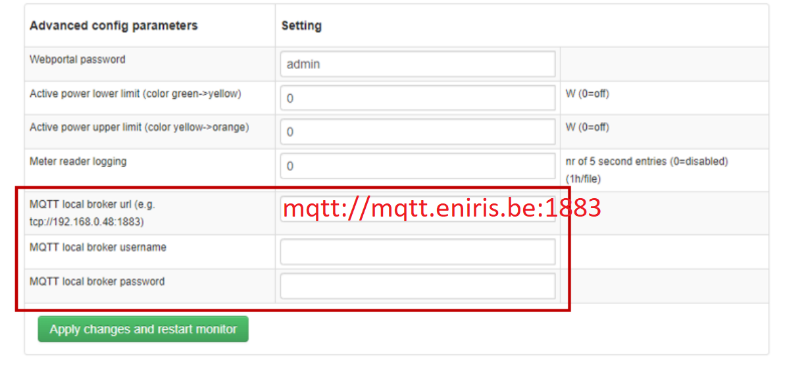
- Fill in the MQTT local broker url: mqtt://mqtt.eniris.be:1883
- Fill in the MQTT username and password using the credentials you created in the previous step
- Click apply changes and restart monitor
5. Configuration in the SmartgridOne Controller
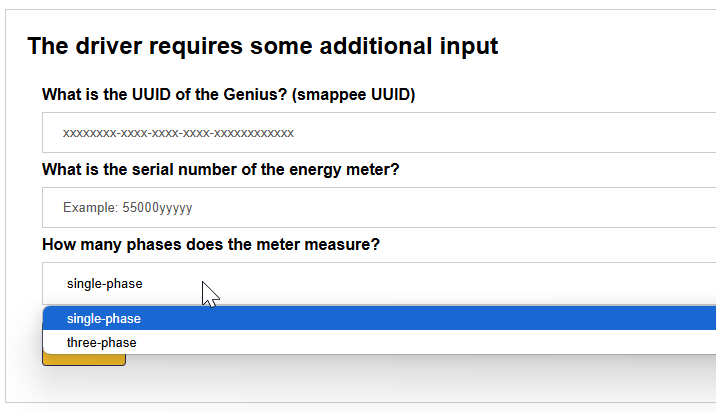
Add the device in the SmartgridOne Controller. When asked for, enter the:
- UUID
- serial number of the meter
- number of phases that are measured